Up to 30 seconds
Per generation, with extension support.
Create with Seedance 2.5 Turbo. Start with text or an image, then direct the action, camera movement, and sound.
Text or image to video · 4–30 seconds · 720p & 1080p with audio.
Track generation progress and download finished clips in My videos.
A familiar freestyle with an unexpected new face. Compare the original Bulin 47 video with three 8-second AI edits, then bring your own portrait to the template.
The movement and audio every edit starts from.
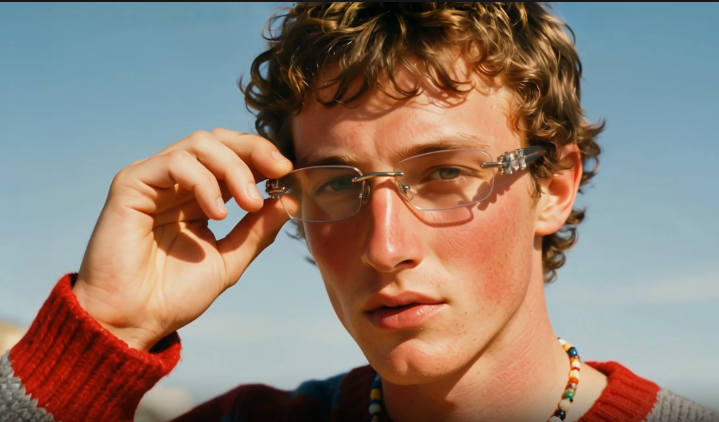
One reference photo → a new character.
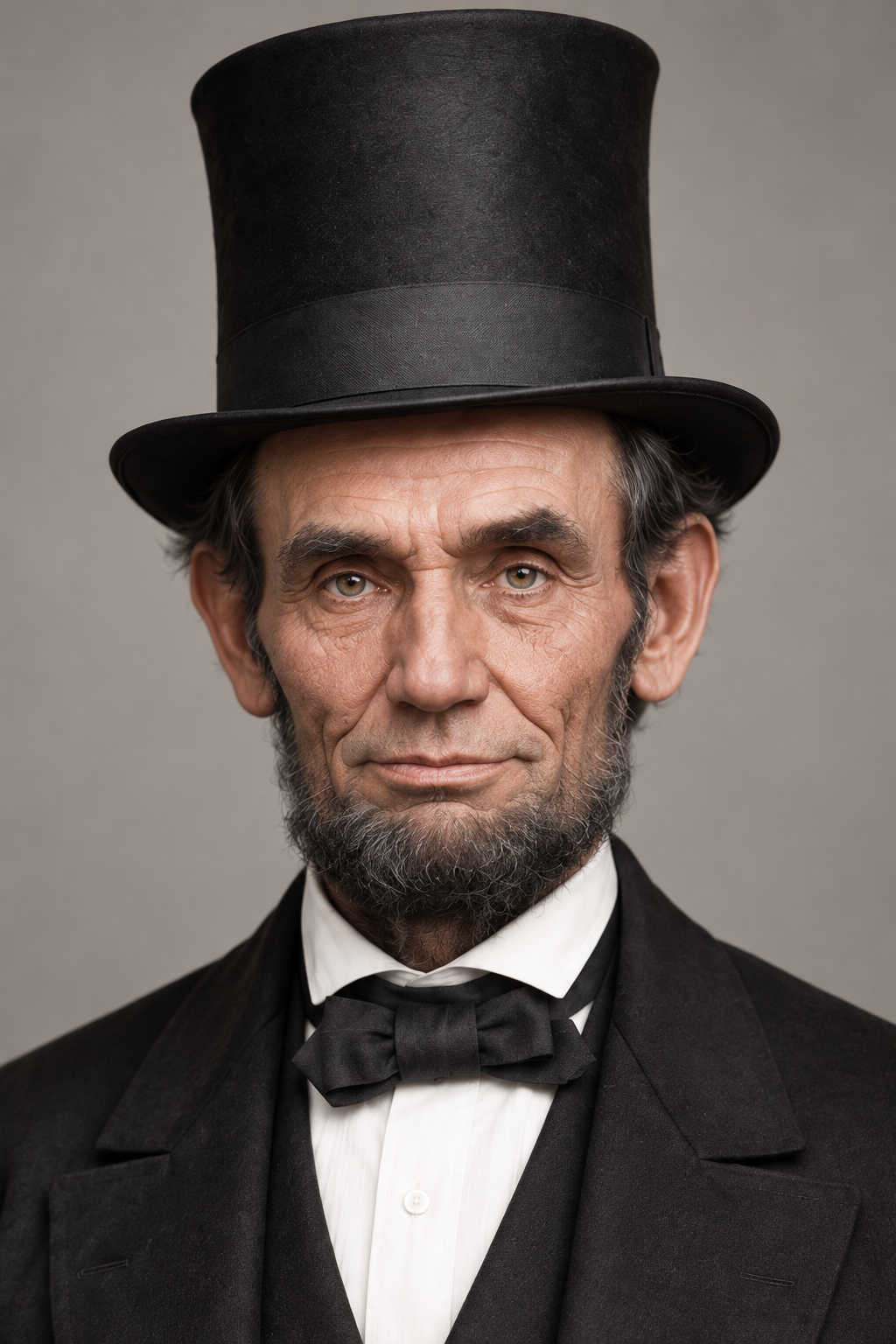
One reference photo → a new character.
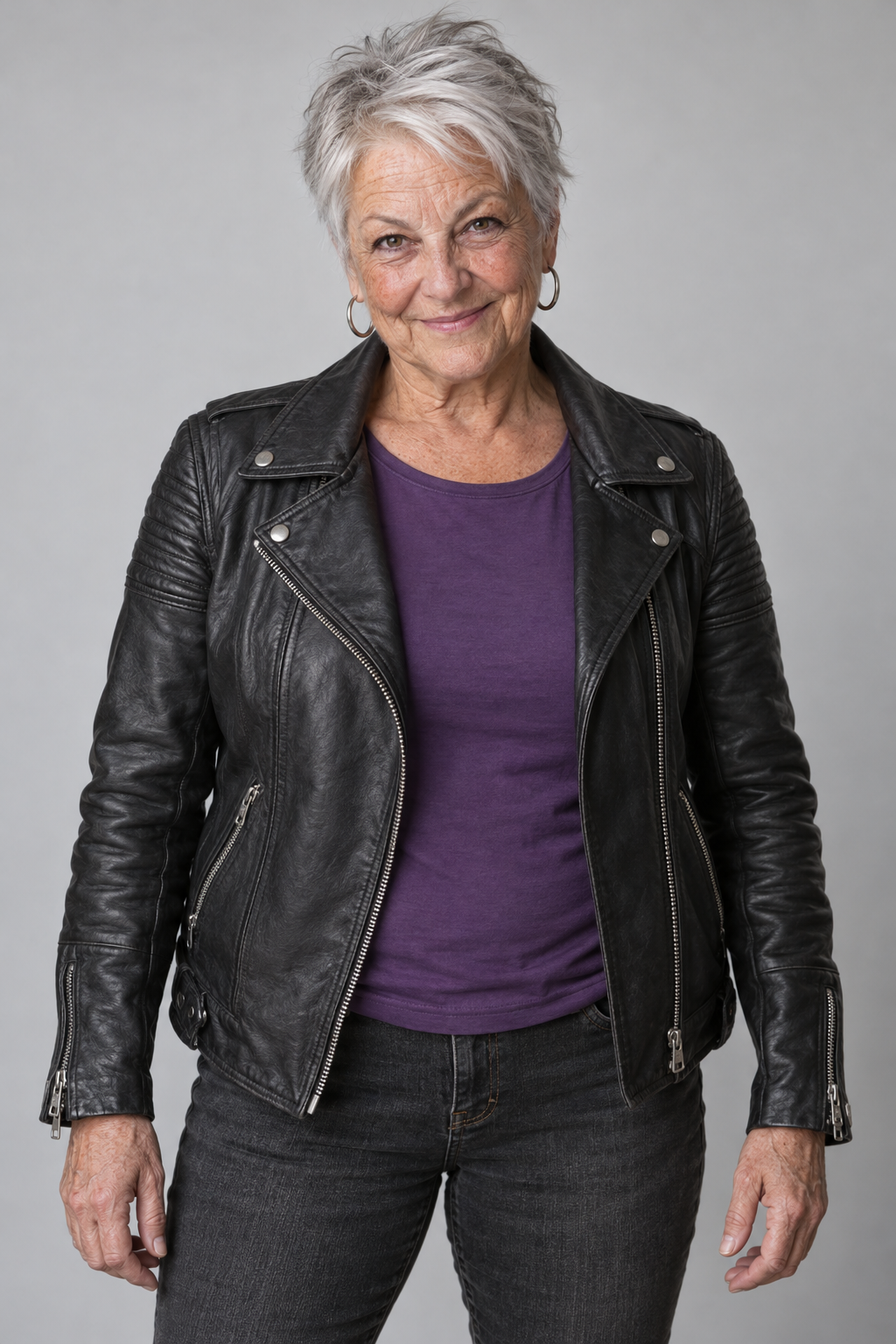
One reference photo → a new character.
AI edits made with Seedance 2.5. Original clip: 15 seconds · AI edits: 8 seconds · Select play for sound. Your own video can be 4–15 seconds.
Seedance 2.5 is ByteDance’s audio-video generation model. It combines visual direction and sound in one creative workflow, with support for longer scenes, reference-led creation, and targeted editing.
Here at seedance-ai.dev, use the Turbo model to create a video from a text prompt or a starting image. Choose 4–30 seconds, 720p or 1080p, and optional generated audio. Sign in and track each result in My videos.
Read the official model overviewPer generation, with extension support.
Guide the look, movement, and sound.
Adjust specific moments in a sequence.
Think in shots, references, and revisions. These visual guides explain the model’s creative possibilities and how to prepare for them.
A scene needs time for an opening, an action, and a payoff. The published model supports longer clips and extensions. Plan a simple sequence before adding extra characters or camera moves.
For an observatory scene, begin with a portrait, add a gentle glance, then pull back to reveal the mountain setting.
Watch the finished scenes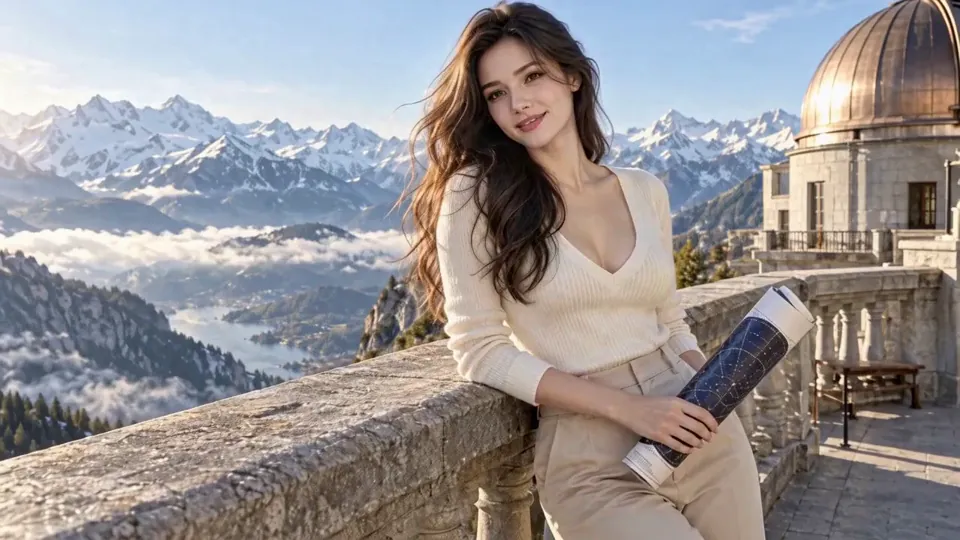
A reference can communicate composition, character, texture, or movement more precisely than a string of adjectives. The model supports multimodal references; our image-to-video workflow uses one starting image.
Use a local file or a direct image URL, check the preview, and describe what should move while the important details stay consistent.
Choose your starting image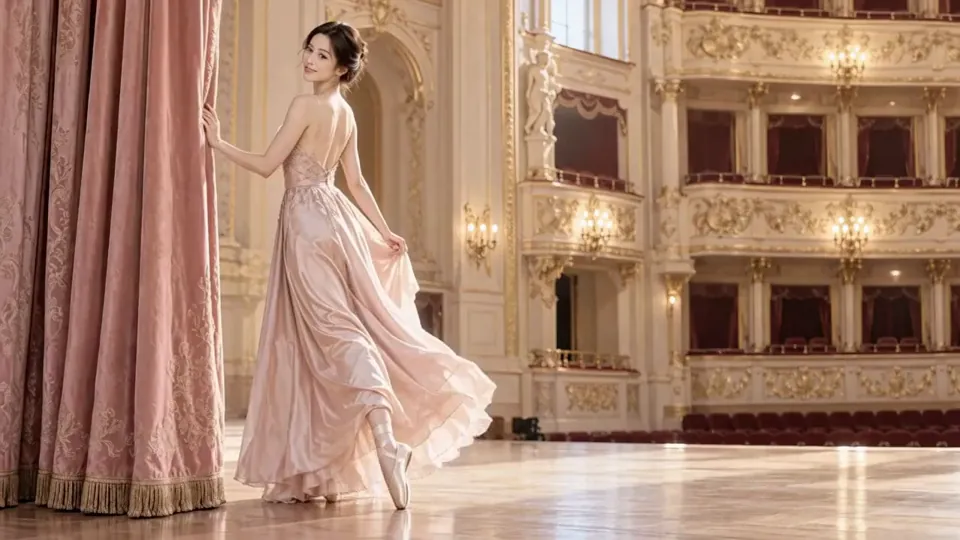
Release the curtain. Take two small steps. Follow a gentle turn with the camera.
Image + motion directionThe model generates audio and video together. Write sound into the scene: the click of a mechanism, footsteps across a stage, or wind arriving before the landscape reveal.
Separate ambience from the main action. Review synchronization and unwanted sounds in the finished clip before sharing it.
Build a focused promptWatch real image-to-video results, explore the starting images, and read the motion and sound direction. Each example was generated with Turbo at 720p for 8 seconds.
A sunlit mountain portrait with a gentle breeze, a quiet glance, and an alpine reveal. Play with sound to hear the generated soundtrack.
View the starting imageUse the observatory image as the starting frame for an eight-second photorealistic film. Preserve the woman's face, clothes, proportions, and soft morning light. 0–2s: a light breeze moves her hair as she looks naturally at the camera, holding the star chart steadily. 2–5s: she slowly looks toward the snowy mountains, then glances back with a gentle smile. 5–8s: the camera pulls back slightly to reveal the terrace, copper observatory dome, and layered valley with drifting mist. One continuous shot with restrained, fluid movement and realistic skin and fabric detail. Audio: gentle mountain wind, subtle clothing and paper sounds, and quiet warm piano. No dialogue, subtitles, added people, sudden zooms, or cuts.
A graceful turn in a softly lit theater, with flowing satin and a warm expression. Play with sound to hear the generated soundtrack.
View the starting imageUse the bright theater image as the starting frame for an eight-second photorealistic fashion film. Preserve the woman's face, champagne pink gown, ballet shoes, and cream and gold theater. 0–2s: she looks back at the camera with a warm, confident smile and naturally releases the curtain. 2–5s: she takes two small steps toward center stage and makes one slow, elegant half-turn, letting the skirt open with realistic fabric weight. 5–8s: she settles facing the camera as the skirt gently falls. The camera follows smoothly, keeping her full body and feet in frame. Maintain soft daylight throughout. Audio: soft shoe contact, satin movement, and gentle piano with natural theater reverberation. No dialogue, subtitles, fast spins, body distortions, or cuts.
Select play to load a video. Starting images are AI-generated; motion prompts are shown in English translation. Results vary, and a prompt does not guarantee an exact action.
Choose text-to-video or image-to-video, describe your scene, and review the credit estimate before generating. The illustrations below explain the workflow.
Select Text to video to start with a prompt, or Image to video to add a local image or paste a direct public HTTPS image link and select Use image. Review the preview before continuing. A clear subject, readable lighting, and space around the action help communicate the composition you want.
JPG, PNG, or WebP · up to 20 MBA breeze moves her hair as she glances toward the mountains. Pull back gently to reveal the observatory and valley. Add quiet wind, fabric movement, and warm piano.
Describe a clear sequence: where the shot begins, what the subject does, and how it ends. Add one camera movement and describe the sound. Keep competing actions to a minimum, and name the details that should remain consistent.
4–30 seconds · 720p or 1080p · Audio on or offFollow each generation task in My videos. Review the subject, movement, and audio before using a clip. Download the version you want to keep instead of relying on the dashboard as permanent storage.
Video retention: 5 days only. Save finished videos as soon as they are ready.Build a shot around the job it needs to do. These are creative planning ideas for the studio.
Break a story into establishing shots, character moments, and transitions. Keep a consistent reference style across the sequence and leave room to edit the pacing.
Begin with an image you own. Direct one revealing movement around a product, then check its proportions, logos, and reflections before using the result in a campaign.
Plan a clear visual hook: a curtain opening, a light switching on, or a subject entering the frame. Keep the main action readable on a small screen.
Use a shared shot brief to discuss lighting, composition, and motion before production. Compare variations around one deliberate change rather than rewriting the whole scene.
For Seedance, Kling, Veo, or another model, use the same brief and starting image. We have not run a controlled benchmark or ranked a winner.
| What to compare | A useful test | Our studio today |
|---|---|---|
| Image inputs | Does the tool accept your reference and preserve the composition? | Preview one JPG, PNG, or WebP, up to 20 MB. |
| Motion & consistency | Check faces, hands, object shapes, and camera direction through the entire shot. | Generate from text or one starting image using Turbo. |
| Audio & timing | Listen for synchronized actions, clear speech, and appropriate ambience. | Optional generated audio; describe the sound in your prompt. |
| Total cost | Compare the cost of a usable take, including retries and equivalent settings. | 20 credits/second at 720p; 22 credits/second at 1080p. |
| Delivery & storage | Check output settings, download access, retention, and usage terms. | Track tasks and download videos. Files kept for 5 days. |
Start with your creative idea, see what is available, and keep the next step clear.
Choose an image and write a motion prompt without creating an account. Review your inputs before signing in to generate.
Review the full credit cost before generating. Prices start at 20 credits per second, with an 80-credit minimum. New accounts start at zero. Buy a one-time credit pack when you are ready to generate.
Sign in to see your balance and account history. Track generation tasks and download completed clips from the same place.
Open My videosThe same rates apply to text-to-video and image-to-video, with or without generated audio. The dollar cost per credit depends on the credit pack you buy. Choose 4–30 seconds; the studio shows the total before you submit.
| Resolution | Per second | 5 seconds | 8 seconds | 30 seconds |
|---|---|---|---|---|
| 720p · default | 20 | 100 | 160 | 600 |
| 1080p | 22 | 110 | 176 | 660 |
New accounts start with zero credits; no free signup credits are included. The minimum four-second video costs 80 credits. Buy a one-time credit pack below. Purchased credits never expire and remain until used. Confirmed failed generations are refunded.
Text-to-video and image-to-video. No subscription. Credits never expire.
Text-to-video and image-to-video. No subscription. Credits never expire.
Text-to-video and image-to-video. No subscription. Credits never expire.
Secure checkout through Stripe. Credits are added after successful payment. Generated videos are kept for 5 days; download a copy promptly.
Visit seedance-ai.dev to create Seedance 2.5 Turbo videos from text or a starting image in your browser. Select a mode, describe your scene, choose 4–30 seconds, and review the credit estimate. No software installation is required.
Sign in with Google to generate using your available credits. My videos shows task progress and completed downloads. Preparing an image or typing a prompt does not spend credits; submitting a generation does.
Seedance 2.5 is an audio-video generation model developed by ByteDance. Its published capabilities include clips up to 30 seconds in a single generation, reference-based creation, and video editing. These are model-level capabilities; the controls available in a particular application can differ.
Our website runs the Turbo model for text-to-video and image-to-video. Both modes support 720p and 1080p, 4–30 seconds, and optional generated audio. Editing, video extensions, and multiple-reference workflows are not available in this studio.
Yes. Turbo text-to-video and image-to-video generation are available to signed-in users with enough credits. Choose a mode in the studio, write your prompt, review the total, and select Generate video.
Google sign-in, credit balances, and task history are available. Buy a one-time credit pack to fund your account before generating. Selecting an image or typing a prompt alone does not start a generation.
You can explore this website, read the prompt examples, and preview a starting image without an account or payment. This free preview does not include a generated video. We are not currently offering anonymous generation.
New accounts start with zero credits, and registration does not include free credits or a free generated video. The minimum generation is four seconds at 720p and costs 80 credits. You need a sufficient credit balance to generate; credit packs are available as one-time purchases.
Generation costs 20 credits per second at 720p and 22 credits per second at 1080p. The dollar cost per credit depends on the credit pack you buy. Both text-to-video and image-to-video use the same rates, with or without generated audio. Durations are whole seconds from 4 to 30.
A five-second video costs 100 credits at 720p or 110 credits at 1080p. An eight-second video costs 160 or 176 credits respectively. The studio confirms your total before submission. Confirmed failed generations are refunded; submitting another successful take uses additional credits. Credit packs are available as one-time purchases.
The studio accepts one JPG, PNG, or WebP image up to 20 MB. Choose a local file, drag it into the image area, or paste a direct public HTTPS image URL and select Use image. The URL should point to the image itself rather than a webpage containing it.
Check that the intended image appears before writing your motion prompt. A remote host may block image loading; if that happens, upload a permitted local copy instead. Only use content you have the right to share, and avoid confidential or sensitive images.
Yes. Select Text to video in the studio and describe the subject, setting, action, camera movement, and sound. No image is required. Choose an aspect ratio in Advanced Settings: 16:9, 9:16, 1:1, 3:4, 4:3, or 21:9.
For Image to video, provide one JPG, PNG, or WebP and a motion prompt. The image guides the framing, so a separate aspect-ratio control is not shown. Both modes use Turbo and share the same resolution, duration, audio options, and per-second prices.
Write a shot description rather than a list of visual adjectives. Identify the subject and setting, give the subject one main action, and explain the camera movement. State what changes during the scene and how the shot should end. For an image-led scene, focus on movement instead of repeatedly describing everything already visible.
In your motion prompt, add specific sound direction when it matters: footsteps on stone, leaves moving in the wind, or a short spoken line. Say which details should remain consistent, such as a face, costume, or product shape. Avoid asking for unrelated locations, rapid transformations, and several competing camera moves in the same short shot.
Yes. Enable Generate audio in Advanced Settings to create audio with your video. Audio is on by default and does not change the listed credit rate. Turn it off when you want a silent clip.
Describe ambience, dialogue, or music as deliberately as the visuals. Review the finished sound for synchronization, clarity, and unwanted details. A prompt is creative direction, not a guarantee of perfect speech or timing.
ByteDance describes this release as extending single-generation storytelling to 30 seconds, broadening multimodal references, and adding finer control over audio-video editing. Its release materials also discuss improvements to continuity and reference-guided creation.
These are the developer’s published capabilities, not a benchmark conducted by this website. This studio supports Turbo text-to-video and image-to-video at 720p or 1080p. Choose a model and interface based on the scene you need to make, the controls actually available, and the result you can obtain.
This model is one option; there is no single best model for every shot. Compare the exact versions and tools you can access using the same starting image and scene direction. Look for consistent faces and objects, believable movement, correct camera behavior, usable sound, and a result that follows your instructions.
We have not run a controlled comparison that establishes an overall winner. A dramatic showcase is useful inspiration, but it does not predict how every prompt will perform. Check current availability, total generation cost, and usage terms before choosing a service for production work.
You can plan individual scenes for a short film, a product reveal, or a social campaign. Start with a shot list and a consistent reference style. Keep each scene focused, then assess continuity, pacing, and audio across the edit rather than expecting one prompt to replace an entire production workflow.
For commercial work, confirm that you have rights to the images, logos, likenesses, music, and other material involved. Review our service terms before generating. AI output can include visual errors or unintended details, so inspect each clip before publication.
Sign in with Google to open the My videos dashboard. Each submitted task appears there with its progress, credit cost, and completed output. The page refreshes task status automatically while generation is running.
Generated video files are kept for only 5 days after completion. Download each finished clip as soon as it is ready to keep a copy. Task history is not permanent media storage. Historical media from the retired service may be unavailable.
The homepage shows actual Turbo image-to-video results: two eight-second 720p clips with generated audio. Each example links to its AI-generated starting image and includes the motion and sound prompt in English translation.
The workflow panels are illustrative guides, while the playable gallery clips are real model outputs. Output quality varies, and a selected example should not be treated as a guarantee for every image or instruction.
No. seedance-ai.dev is an independent website and is not affiliated with or endorsed by ByteDance. The model name identifies the technology this studio uses; the name does not imply that we developed it.
Use this website for our studio availability, pricing, and service policies. Consult ByteDance’s own model information for the developer’s technical announcements. Features announced for the model may not all be supported by this service.